Showing posts with label ios. Show all posts

Sunday, 3 July 2016

12 Secret iPhone Hacks (that even Experts don't know about)

Think you know the full power of your iPhone?
Think again.
Most people don't realize how crazy powerful their iPhones are.
And many never bother with the handy (and secret) hacks that make the iPhone even cooler!
I'm not talking about popular stuff -- like customizing backgrounds or playing video games from the '90s.
Nah, the secret iPhone hacks I'm talking about (and the ones I list below) are actually useful.
And they'll make your iPhone experience better than you ever dreamed.

12 Secret iPhone Hacks (that even Experts don't know about)

1. Use your iPhone like an Etch-a-Sketch
iphone-secretsFat-fingered peeps will love this!
Your iPhone can work like an Etch A Sketch.
Don't believe me?
Try shaking your phone next time you type a mistake. The shaking should clear the screen and let you start again.

It doesn't matter if you're writing a text message or editing a pic -- just give your phone a shake next time you make a mistake.

2. Invert Display Colors to Browse at Night

Want to browse at night without disturbing everyone in the room?
Apple's got you covered!
Just invert the iPhone display colors -- it's easier on the eyes and you can surf the web and email without waking your spouse and kid.
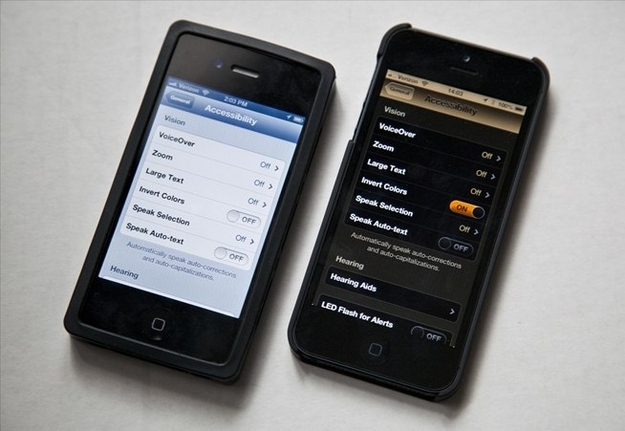
secret iPhone hacks

3. Turn Off Autofocus in a Tap

Autofocus got you down?
Are you the kind of photographer who likes to do it yourself?
You can turn off your iPhone's autofocus when the nagging little feature gets in the way.

In camera mode, hold the screen until you see "AE/AF Lock."
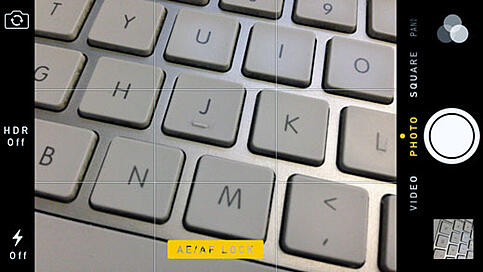
secret iPhone hacks

4. Swipe Left to See Text Timestamps

Need to see what time that text message was sent?
On an iPhone, it's a cinch!
Just swipe left on the text screen.
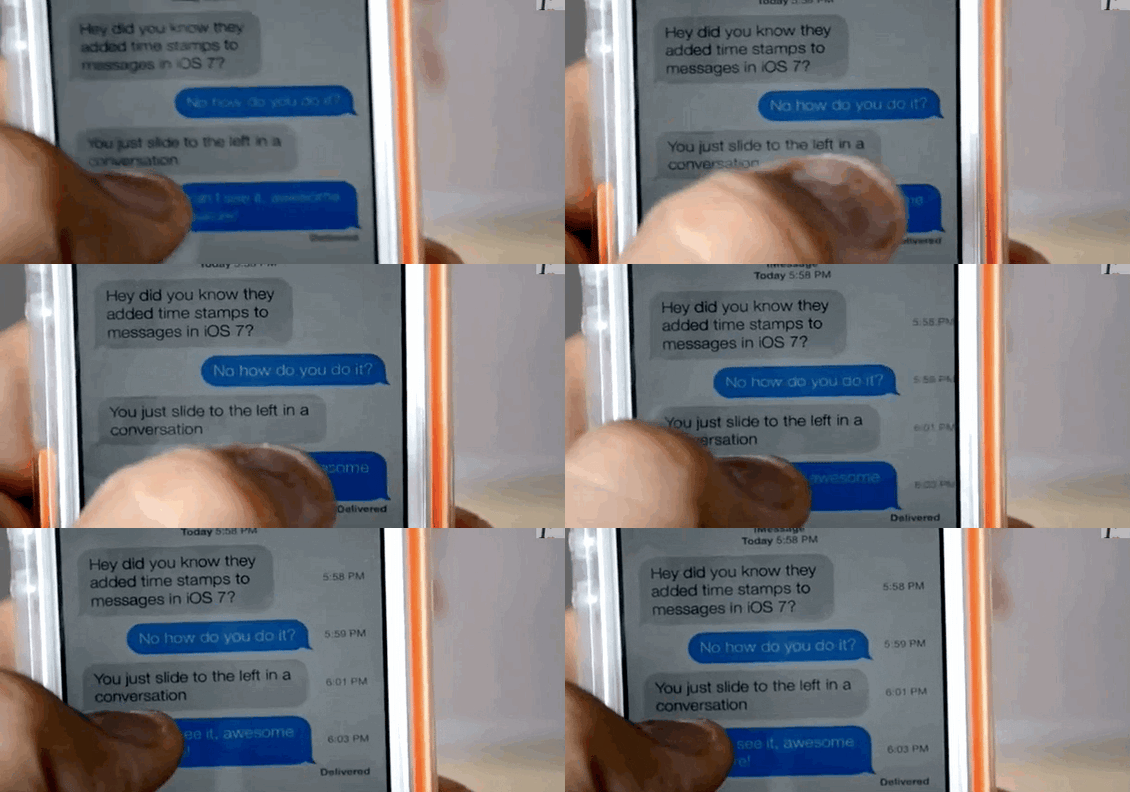
secret iPhone hacks

5. Tell Siri Your Relationships

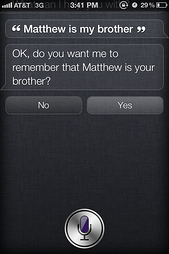
iphone-secretsHave you ever told Siri to simply call your "husband"?
How about your "mom" or "son"?
Siri can do it with one easy hack.
Ask Siri to call your "dad" and your phone should respond by asking who your father is. Next time Siri will reach your dad straightaway.
Match the right contact and it'll only take a "Call dad" to get your pops on the horn.

6. Charge Battery Faster in Airplane Mode

Your battery will charge in a hurry if you switch your iPhone to airplane mode.
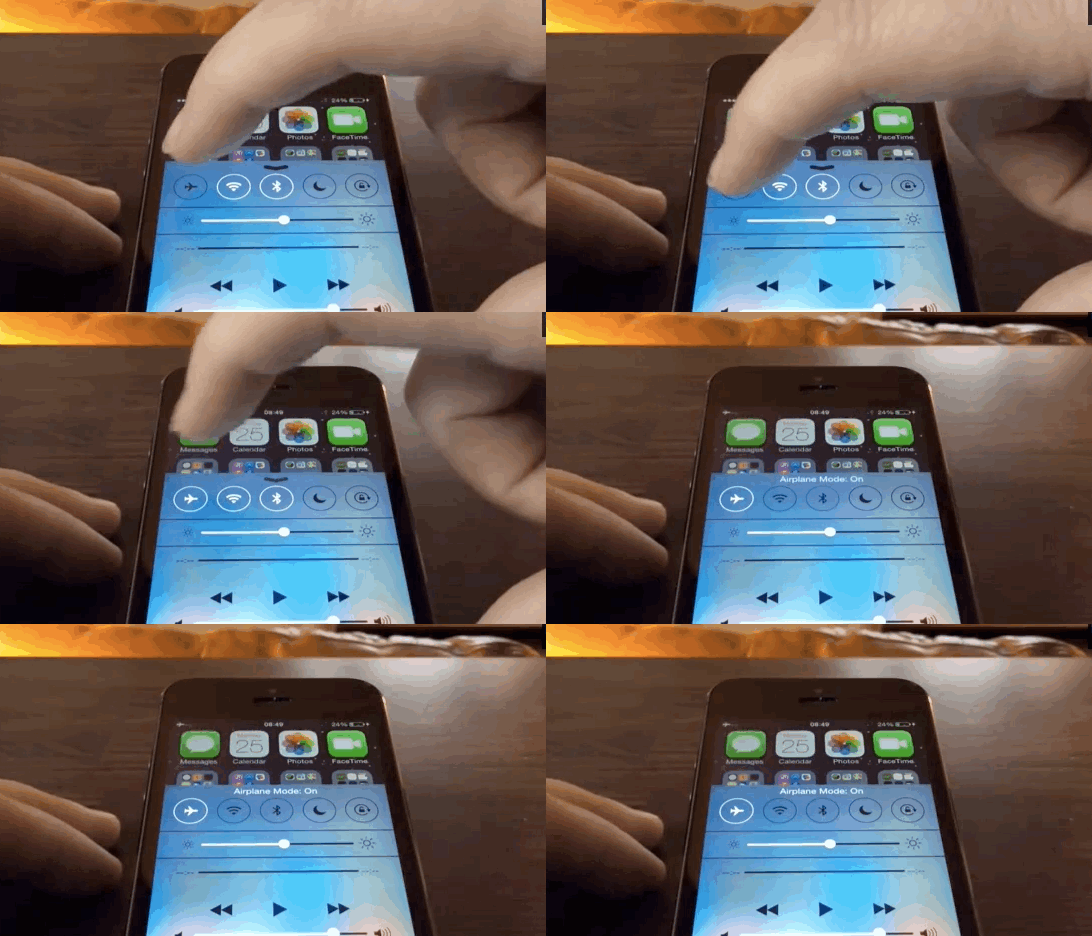
secret iPhone hacks

7. Access Numbers Super Quickly

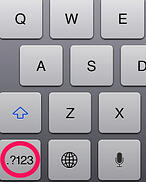
secret iPhone hacksTired of using the numerical keypad to type numbers in an email or text?
There's a hack for that!
Just hold the "123" button and slide to the numbers you need. Your iPhone should then revert to the original keypad.

8. Use Siri to Check Twitter

You don't have to open Twitter to see who's saying what online.
Ask Siri "what Userx is saying" and you'll see a list of our recent tweets.

9. Finish URLs in a Snap

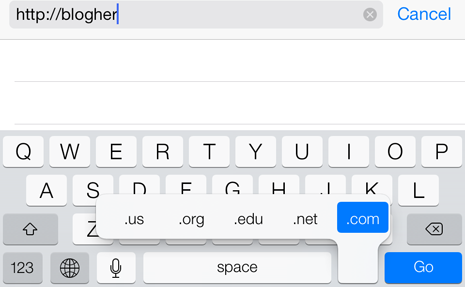
Use the "." key next time you search for a URL on your iPhone.
Holding down the "." key will reveal suffixes like ".com" as you type a website URL.
secret iPhone hacks

10. Shoot Series of Photos All at Once

If you hold down the Capture button when using your iPhone camera, your phone will automatically take a series of photos so you can pick the best one.

11. Know What Your iPhone Knows About You

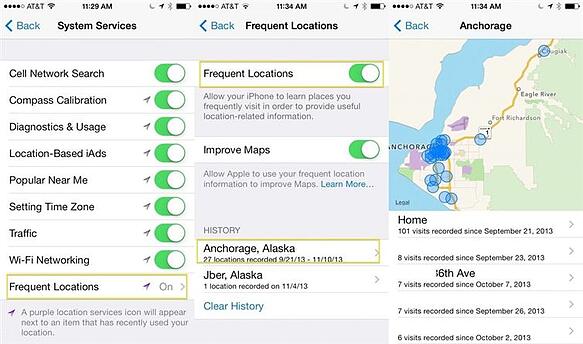
Have you ever checked out the "Frequent Locations" on your iPhone?
It's amazing (and kind of scary)!
Your iPhone knows where you hang out the most and is prepared to reveal these locations any time.
Be careful out there. ;)
secret iPhone hacks

12. Never Use Passcode "1234" Again!

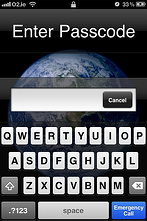
secret iPhone hacksEven amateur hackers make cracking a 4-digit password look like child's play.
That's why Apple makes it easy to create a password that's more complex.
Click Settings > General > Passcode Lock to turn off the simple passcode -- then enter something that's harder to figure out.
BONUS Hack...
This could be the most useful iPhone hack on the list!
Have you heard of IF by IFTTT? It's the iOS app that lets you create IFTTT recipes to connect your favorite apps so they work harder for you.
Did you know you can hack your social media accounts with this nifty trick?
Best part? You can do it all from your iPhone.
Or have it automatically pin that post to a specific board on Pinterest.
Or have it automatically send that post to your Gmail to remind you to put the pic on Instagram later.
The options for how you can link your social networks are endless!! (and free)

Time to Hack!

Awesome, right!
Now it's your turn. Have you ever used your iPhone as an Etch A Sketch? Have you hacked your social media accounts with your iPhone?
What secret iPhone hacks on this list have you already tried?
I'm a newbie when it comes to iPhone hacks -- so I'd love to read your favorite iPhone secrets in the comments below.

Thursday, 30 June 2016

Hack attack: How Siri or Google Now can hear silent commands from 16 feet away!

You might not want to keep your wired headphones plugged into your iPhone or Android handset. The wires act as an antenna and with the right equipment, hackers can take advantage of that.


Shh.... Hear that? It's the sound of silence.
And that's why you won't know if a hacker is controlling your phone via Siri or Google Now through radio waves.
Wired reports that a group of researchers at France's government information security group found a way to silently send commands to nearby iOS and Android smartphones. I wouldn't panic just yet because the tools they needed are a full laptop and antenna but the team says their kit could fit into a backpack and you'd never know.

With the open source GNU Radio software on a laptop, electromagnetic signals can be sent to those devices. Depending on the sent command, Siri or Google Now can told to open up a website, send a text, place a call or do any other number of things.The attacking method uses connected headphones in an iPhone or Android handset to act as a receiving antenna; similar to how FM radio chips do so inside mobile devices.
Granted, most handset owners don't have wired headphones plugged into them when not in use. And if someone was remotely sending silent "voice" commands to your phone, you'd likely see what's going on; the hack doesn't disable the handset's display.
Even so, it's a concerning proof of concept that both Google and Apple should consider researching and finding a way to close the door on any potential unwanted access. The researchers say they have shared their information with both companies.
In a demonstration of the remote control, the researchers were about six feet from a phone. They say that with more battery power and a stronger antenna, the exploit could occur in up to a 16 foot range. The equipment to do so wouldn't be as portable, however.

Tuesday, 3 May 2016

[HACK] iTunes , Paypal And Amazon Gift Card


This is a UNIVERSAL APP so this HACK works for both iPhone and iPad.

Note :- If you get errors when installing the hack, It might be because you have previous Flex 2 hacks installed.Go to cydia > installed tap > find the Flex 2 hack packages and remove them. Now try again and install the new deb.


Requirements:

  1. - Internet - Connection (To Download Hacked File)
  2. - Jailbroken - Device (JB)
  3. - AppJoy - Free Gift Card Rewards (Open iTunes to download apps.)
  4. - Flex 2 - (Cydia)

Features :

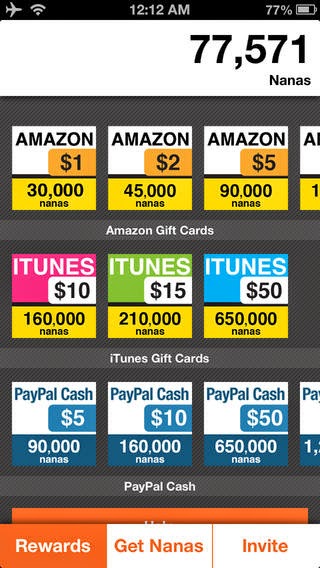
  • Unlimited NANAS - Working...

Instructions:

1.) Download the app called app-joy off of The Apple-app store for free.

2.)Open Cydia up on your jailbroken Iphone, Ipad and Ipod and search for Flex 2.

3.)Reboot your i device and open up app joy.

4.)make a account on appjoy with a valid email address.

5.)Double tap the home button for the multitask bar and open flex 2.

6.)When you are on Flex 2 Go to the second tab and find the appjoy app.

7.)Click the top file that says "appjoy unlimited nanas"

8.)Download and make sure the box is tick for the patch.

9.)Now simply switch back to the app and you will have 999,999.. nanas which you can purchase the gift cards that are not to much :smile:


(You can only buy the $5 ones because else they wont send them when i tried i never got a email back only until i bought the $5 one i received it)

Saturday, 30 April 2016

How to Secretly Track Someone's Location Using Your iPhone


Before You Start

If the person you want to track is running iOS 8, you'll need to download the Find My Friends app from the iOS App Store on their phone, as well as yours. On iOS 9, which is already available, Find My Friends is a stock app that will already be on the device.

Step 1: Enable "Share My Location" on Their iPhone

Begin by opening the Find My Friends app on their iPhone, then tap on their contact picture at the bottom to enable "Share My Location" from the settings.
Also make sure that the location is being shared from "This Device" (under the "Share My Location From:" setting), as there may be other devices (like an iPad) that are attached to the same iCloud account.

Step 2: Share Their Location to Your iPhone

On your iPhone, swipe up from the bottom of the screen to enable AirDrop from the Control Center. Make yourself discoverable to "Everyone", although the "Contacts Only" option will suffice as long as their iPhone has your contact information saved to it.
Back on their iPhone, tap on "Add" (in Find My Friends) and hit your contact icon when it appears. Select "Share Indefinitely" to share their location to your iPhone for an unlimited amount of time.

Step 3: Accept Their Location; Don't Share Yours Back

Once their location is shared to your device, hit "Accept." After a few seconds, a popup will appear asking if you want to share your location with them. Tap on "Don't Share" so that they can't track your location.

Step 4: Track Their Location

In the Find My Friends app, simply click on their contact icon to see their exact location in realtime. You'll also see options to be notified if they leave or arrive at a certain location, so you can alert yourself when someone leaves their house or work (yeah, creepy).

How to Be Really Sneaky About It

Of course, all of this is probably dependent on you not getting caught. Luckily, most people won't venture into their Find My Friends app, and even if they do, they'd have to actively look at who they're sharing their location with.
But, there are a couple of ways to hide the app so that they don't even realize they have it.

Step 5: Hide Their 'Find My Friends' App

You can do this one of two ways:
  • Make It Disappear Using the Dock (Easy)
  • Make It Disappear Using a Folder (Not as easy)
Either of the methods above will remove the Find My Friends app temporarily, but restarting the device will bring the app back on the home screen.
While I don't condone tracking someone's location without their consent, I believe that it's important to be aware of how built-in features can be manipulated to take advantage of others.

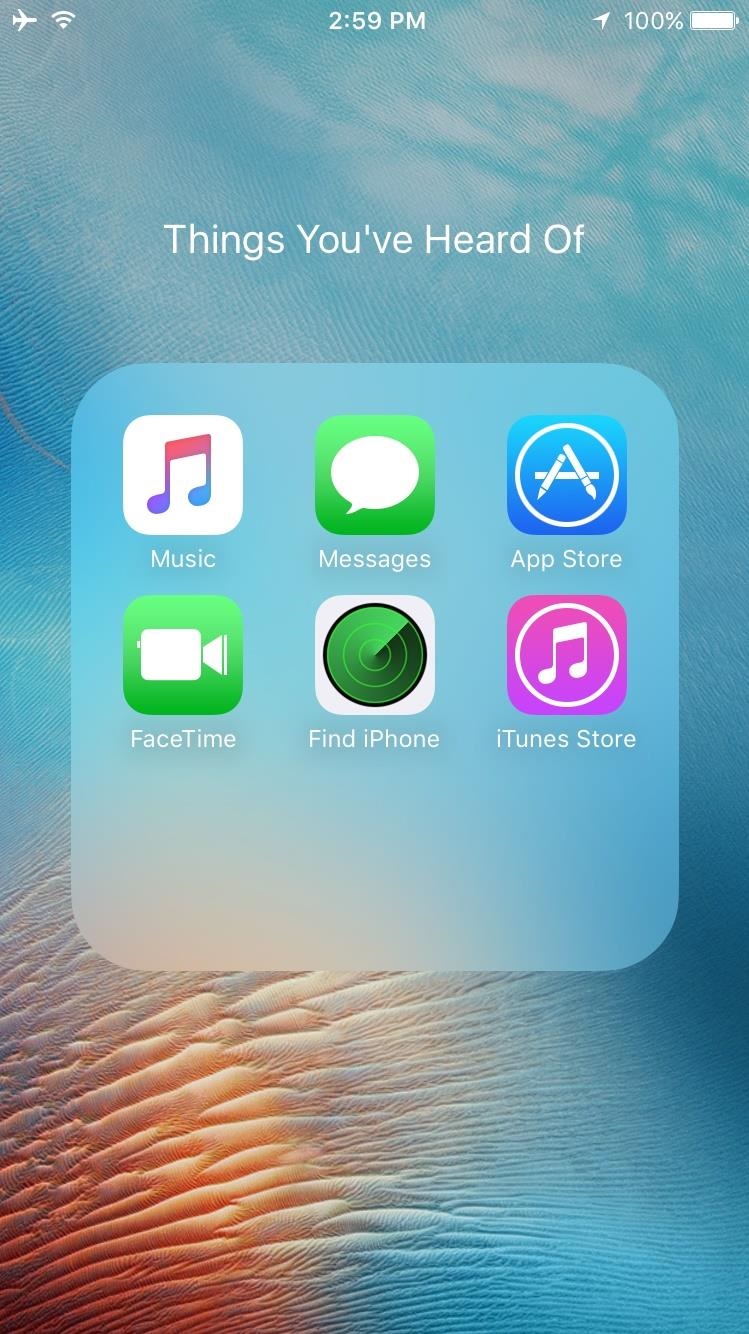
How to Get Circular Folders on Your iPhone's Home Screen


Step 1: Download a 3x3 Wallpaper

To get started, just head to the link below from any iPhone running iOS 9.3 or higher. Once you're there, you'll see a series of images (52 in all), so scroll through until you find the one that looks best to you, keeping in mind that this image is going to become your wallpaper. Once you've settled on an image, long-press it, then choose "Save Image."

Step 2: Set Your New Wallpaper

Next up, head to the Wallpaper menu in your iOS device's main Settings, then select the "Camera Roll" option, and choose your 3x3 image from the list. From here, tap "Set," then choose "Set Home Screen" (or "Set Both" if you want this image to be used on your lock screen as well).
Alternatively, you could just got to your Camera Roll in the Photos app, select the image, hit the share sheet icon, and choose "Use as Wallpaper."

Step 3: Enjoy Circular Folders

Next, just head to your home screen to check it out—any folders you have will now have perfectly-rounded backgrounds. When you tap one of the folders, you'll still see the regular rounded-square background, but your home screen now has a completely custom look that will surely make your friends jealous.
On some devices, not all folders will work perfectly. You may need to move them around on your screen to get the circles to appear correctly, or try a different wallpaper from the list. Also, in our experience, using "Still" works better than "Perspective" when setting the wallpaper.

Thursday, 28 April 2016

10 Things iPhone Does Better Than Android


I've been an Android user almost as long as the operating system has existed, so when I received my first iPhone this month, I felt like I was in a foreign land. Sure, it runs most of the apps I'm used to, and the phone itself feels about the same in my hand as any similarly-sized device, but everything else is just different.
I consider myself an Android expert, and it's from this perspective that I think I can offer a different take on the age-old "Android versus iOS" debate. I can look at iOS through the fresh eyes of a total newb, while at the same time knowing the ins and outs of how the competition handles the same hurdles, thus clearly identifying any discrepancies.
I've already covered all of the little things that I miss from Android, but now, it's time to take a look at the other side of that coin. It's clear that both operating systems have their strengths and weaknesses, but the ten topics I'll cover below are where iOS outshines Android. (Some of these issues canbe fixed with third-party apps and root mods.)

#1 - Quick PIN Unlock

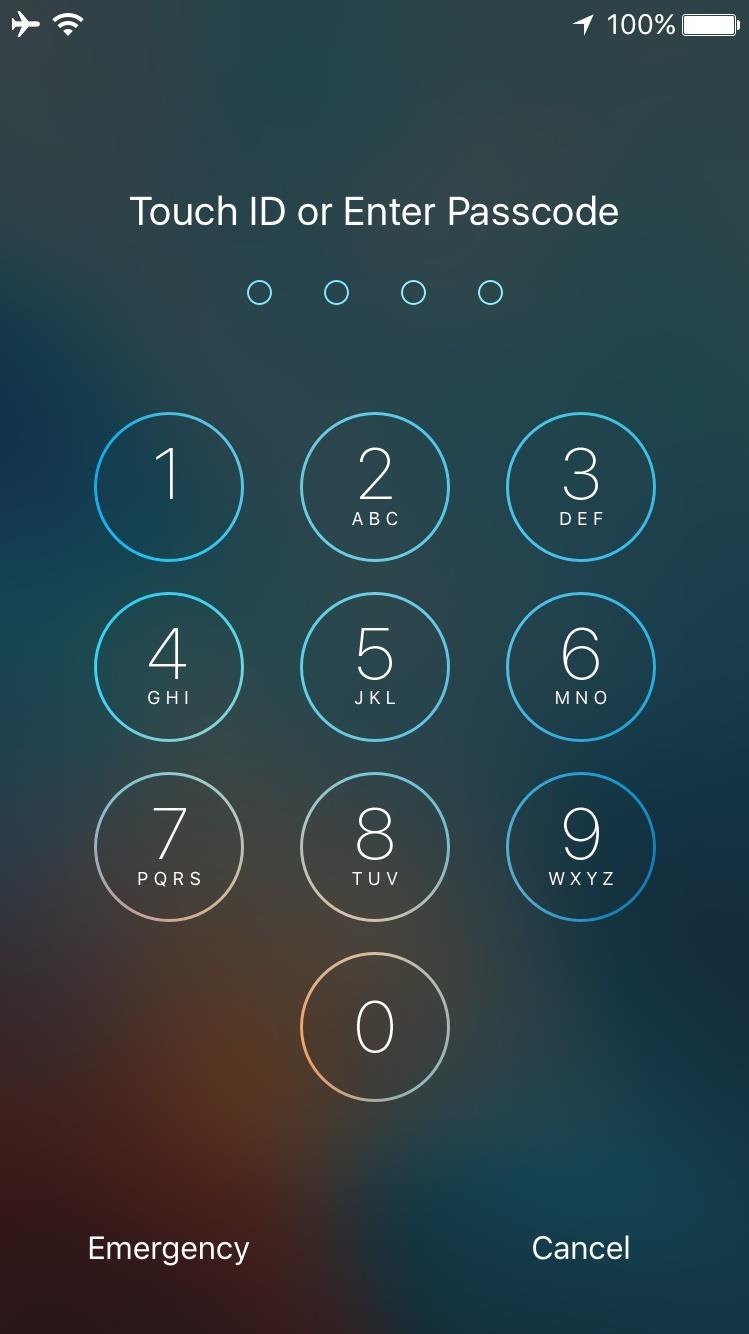
When you set up a new PIN on iOS, the operating system takes note of whether you used four or six digits. This means that when you're entering your PIN to unlock your device, iOS can simply recognize that you entered the correct passcode, then immediately unlock your phone.
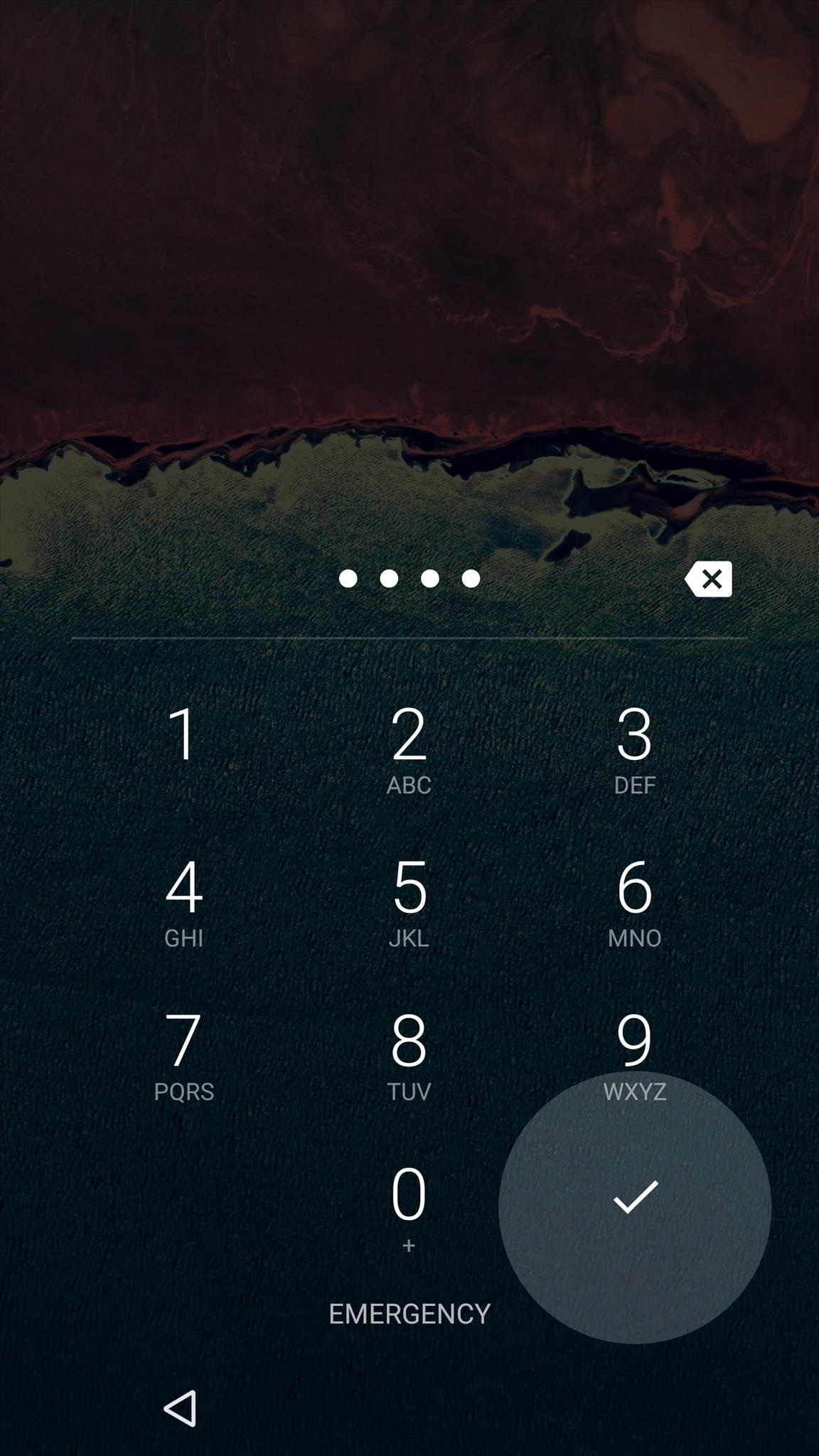
On Android, it's almost as if there aren't any rules. You can enter as many digits as you'd like when setting up your PIN, and the system just accepts it as long as there are more than four numbers. As a result, Android has no idea when you're done typing your PIN, which means you're forced to hit the check mark when you're done. It's a minor quibble, but with a four-digit PIN, that equals 25% more work every single time you unlock your device.

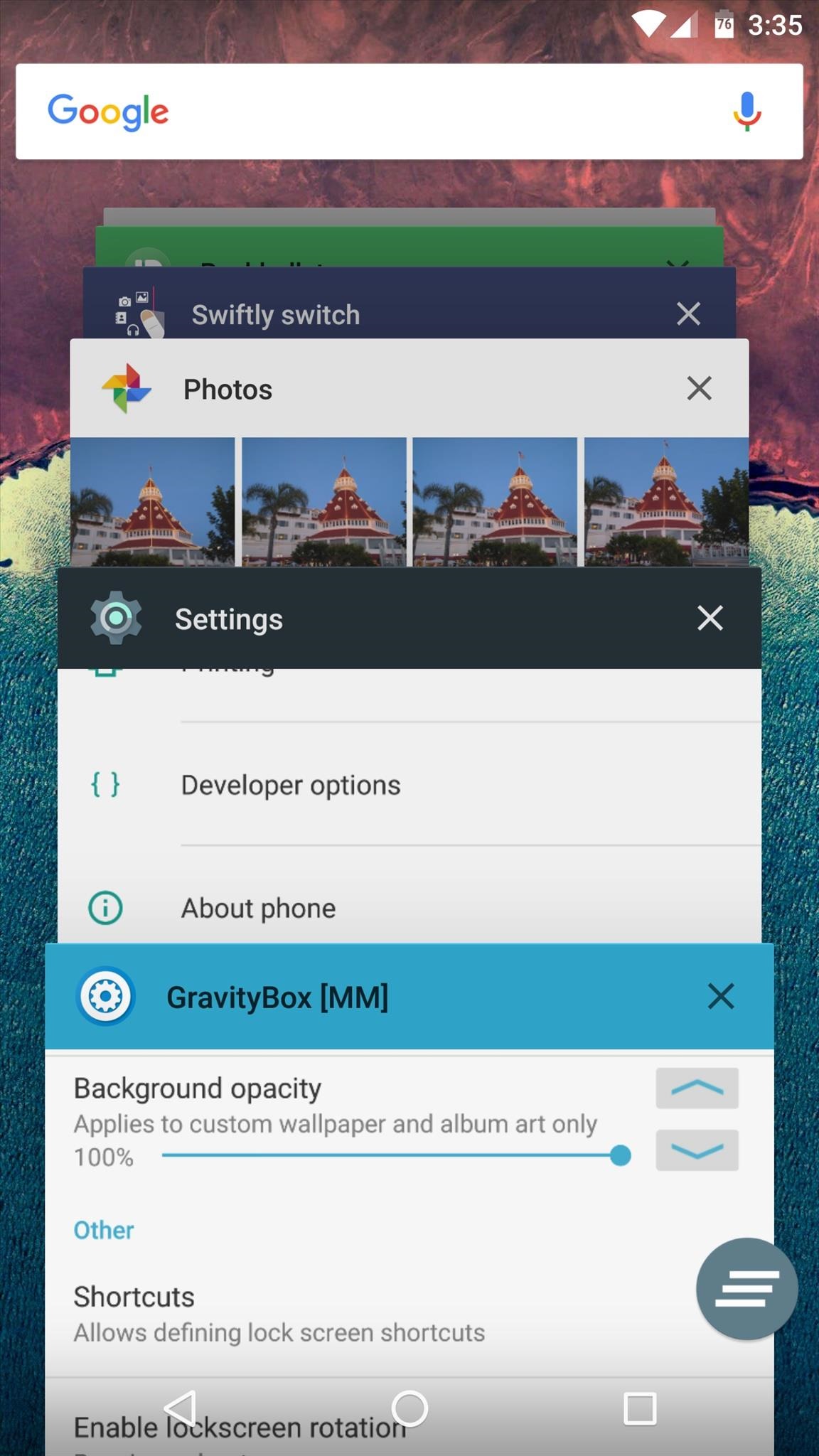
#2 - Easier App Switcher

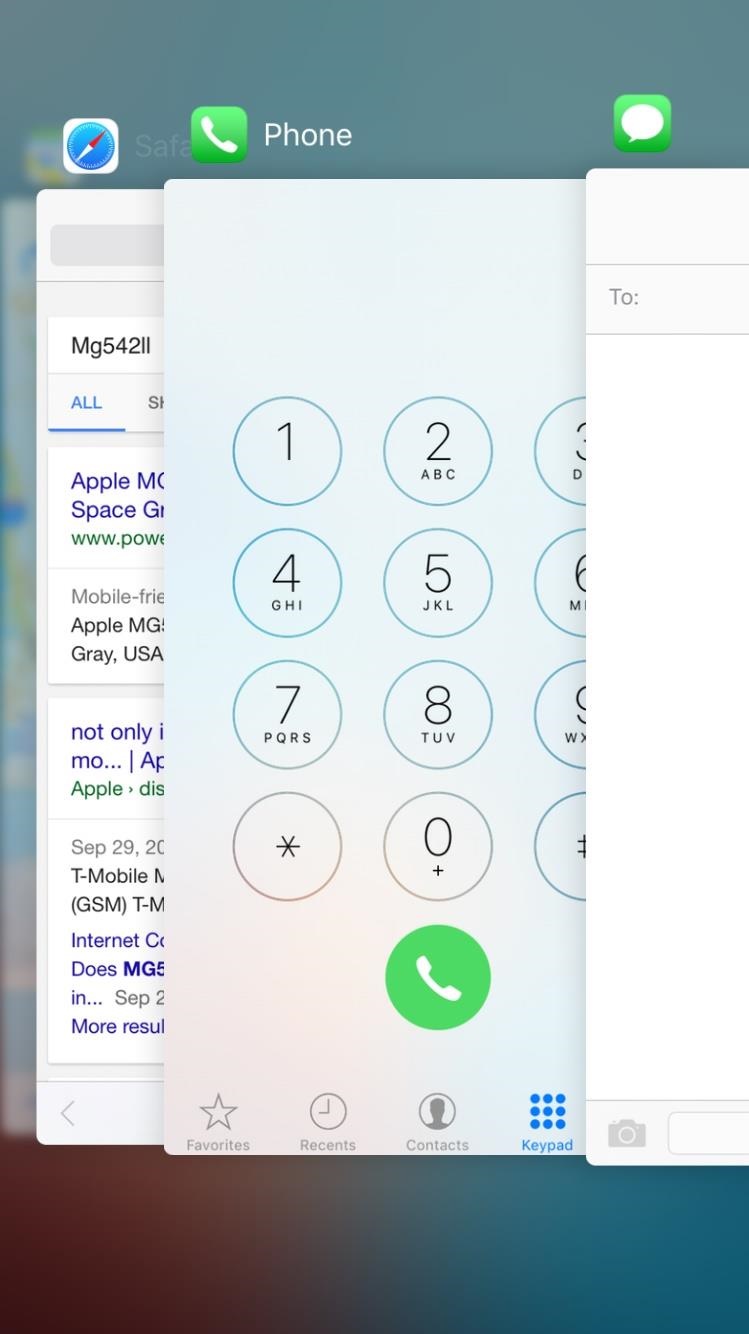
Phones are designed to be used primarily in portrait mode, which means that the screen is much taller than it is wide. Apple has taken advantage of this vertical aspect ratio by offering an app switcher that scrolls horizontally, so your recently-used apps can be seen nearly full-screen.
On Android, however, the recent apps list scrolls vertically, which means you can only see a small portion of each app. This becomes particularly annoying when you consider that apps in this list persist through a reboot, so it can be quite difficult to find the app you're looking for.

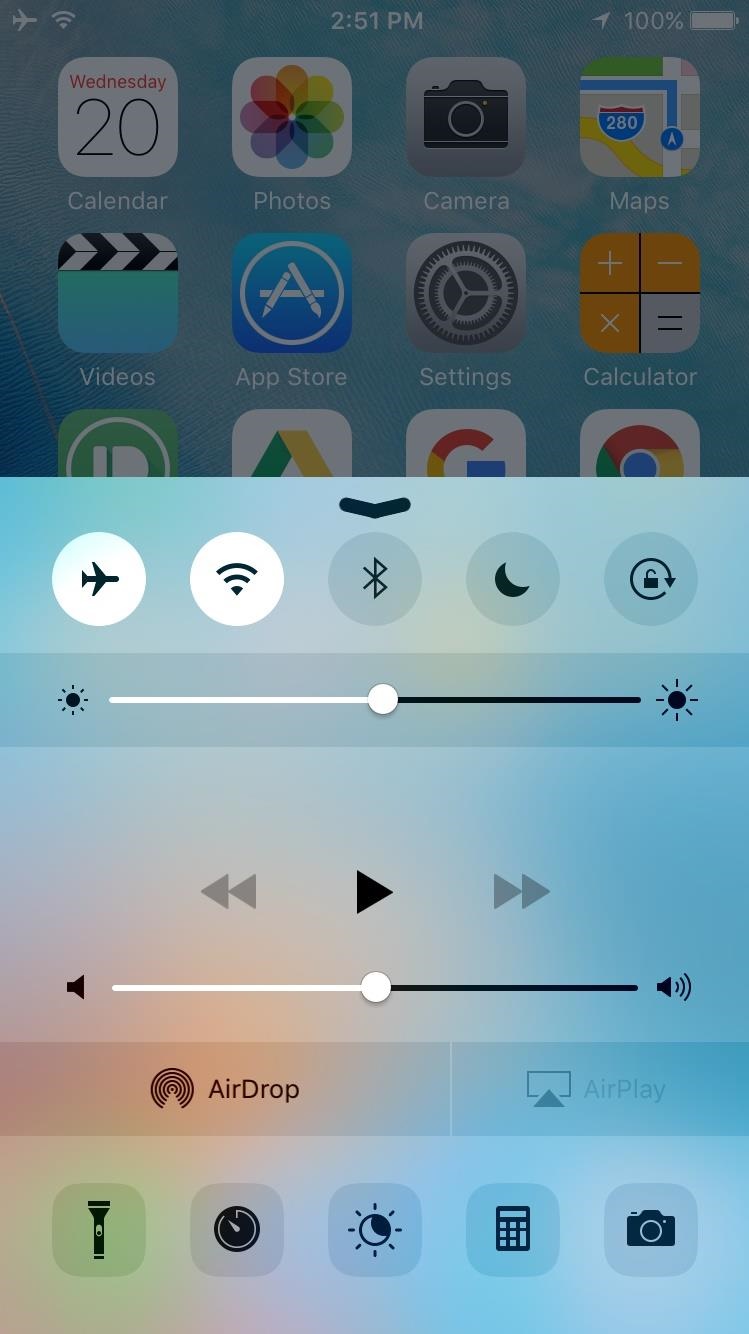
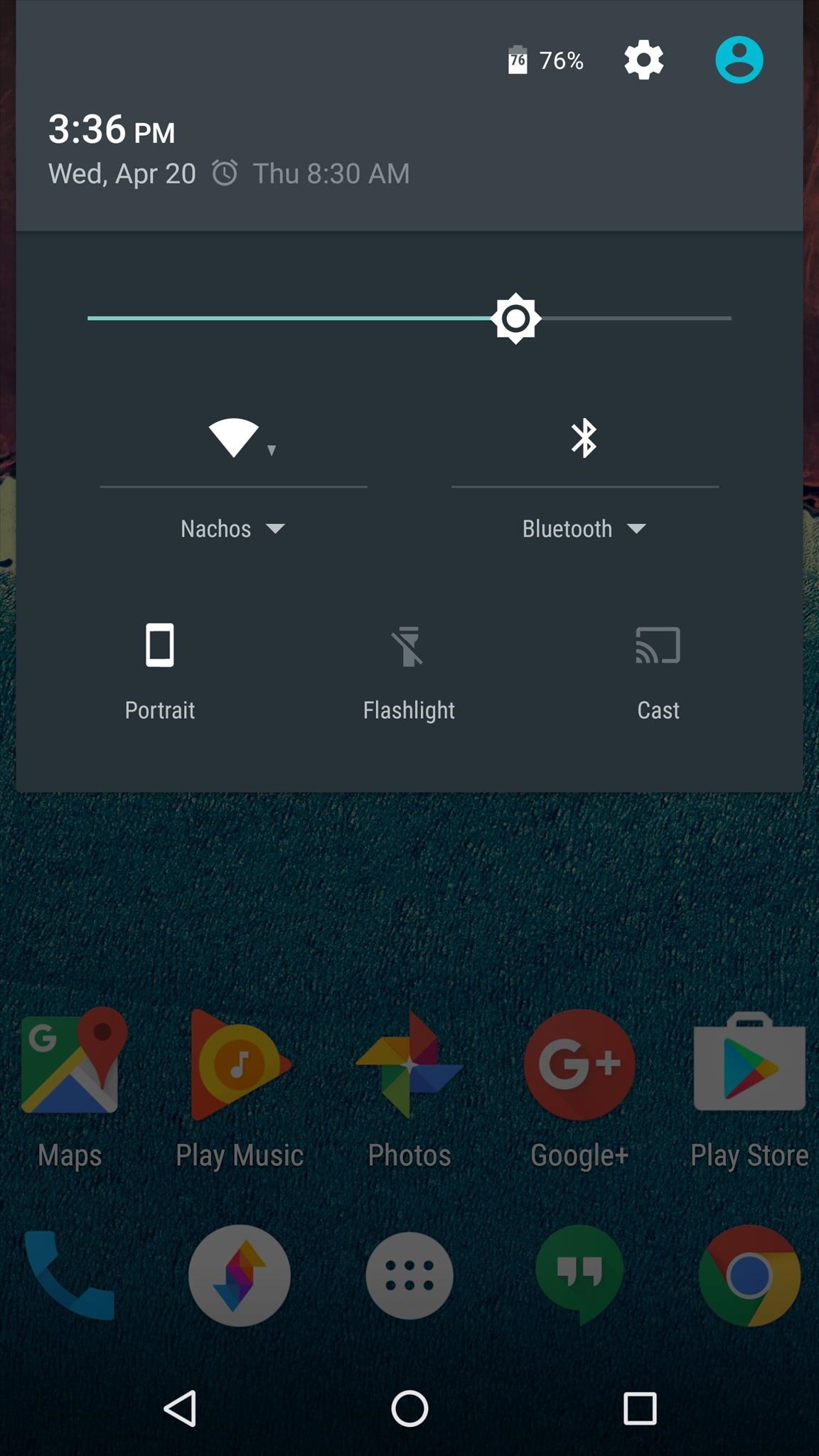
#3 - Quickly Launch Common Apps

The Quick Settings panel on Android and the Control Center on iOS are virtually identical in terms of functionality. Really, the only difference is that iOS allows you to quickly launch apps like the compass, calculator, flashlight, and camera—a very handy feature, and something you can't do on Android without some tinkering.

#4 - Discoverability & Name Recognition

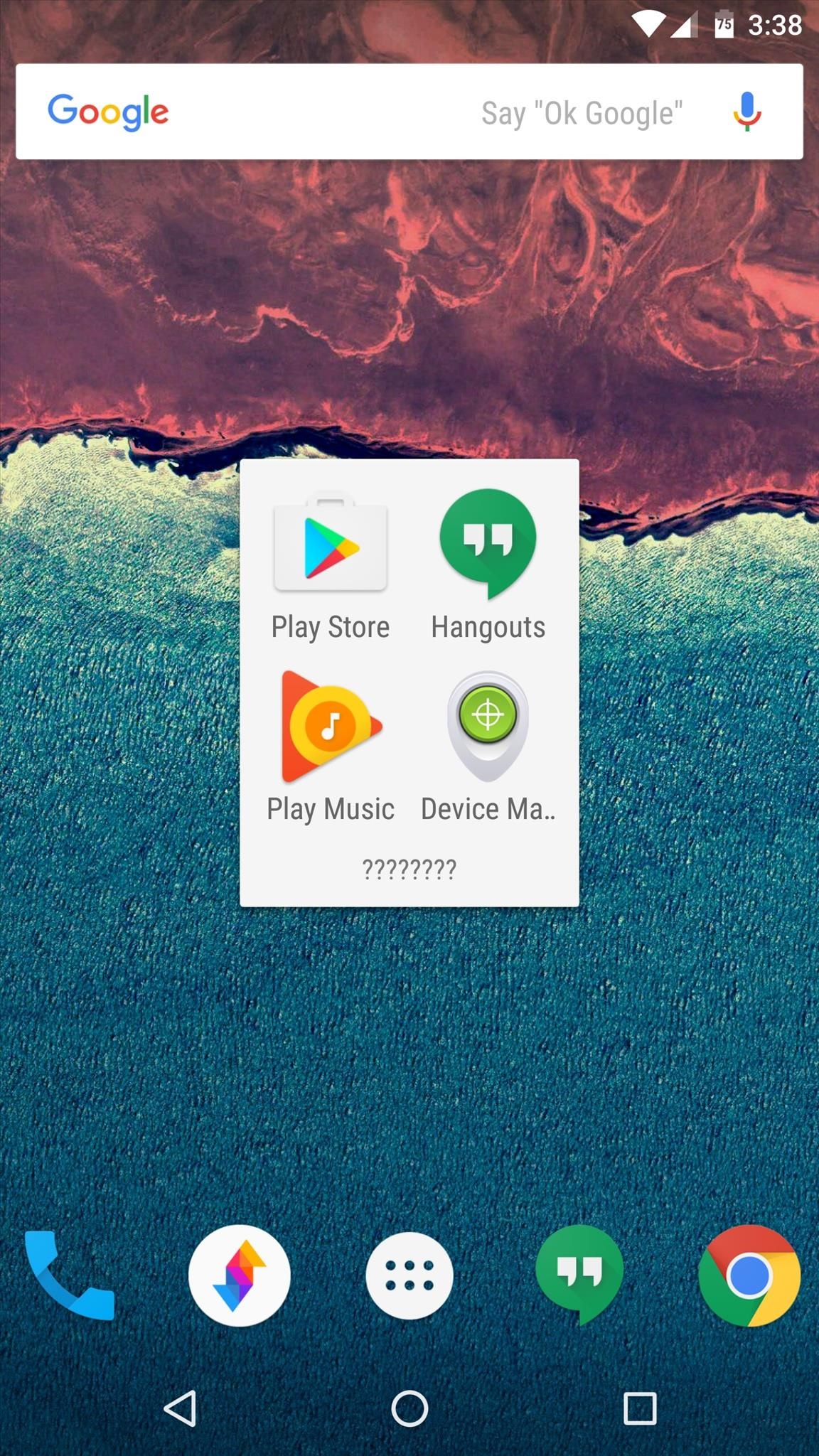
This next one is a bit more abstract, but it has real-world repercussions. Apple is much better than Google at naming and marketing its services, which results in more users being aware of the features on iOS. Think about it—if you want to do a video chat with an iPhone, you know to open FaceTime like the commercial told you to do. If you were holding an Android phone instead, would you know to open Hangouts? Not as likely.
When people don't know about your services, people don't use them. When people don't use your services, they become less valuable. So without the name recognition, services on Android are inherently less useful than their iOS counterparts.

#5 - Firmware Updates

I will never again buy a Samsung phone or any Android device with a manufacturer skin like TouchWiz. When Google patches a security loophole in Android, the manufacturers take months to layer all of their tweaks back on top the newer, safer Android version, then carriers will sit on the update for another few months before finally sending the update out to devices.
With iOS, Apple flips the switch on a new firmware version, then it immediately starts hitting devices across the globe. True, this is how Google handles updates with its own Nexus devices, but the kicker here is that Apple continues to support older iPhone models for as long as five years, whereas Google stops (officially) after just three.
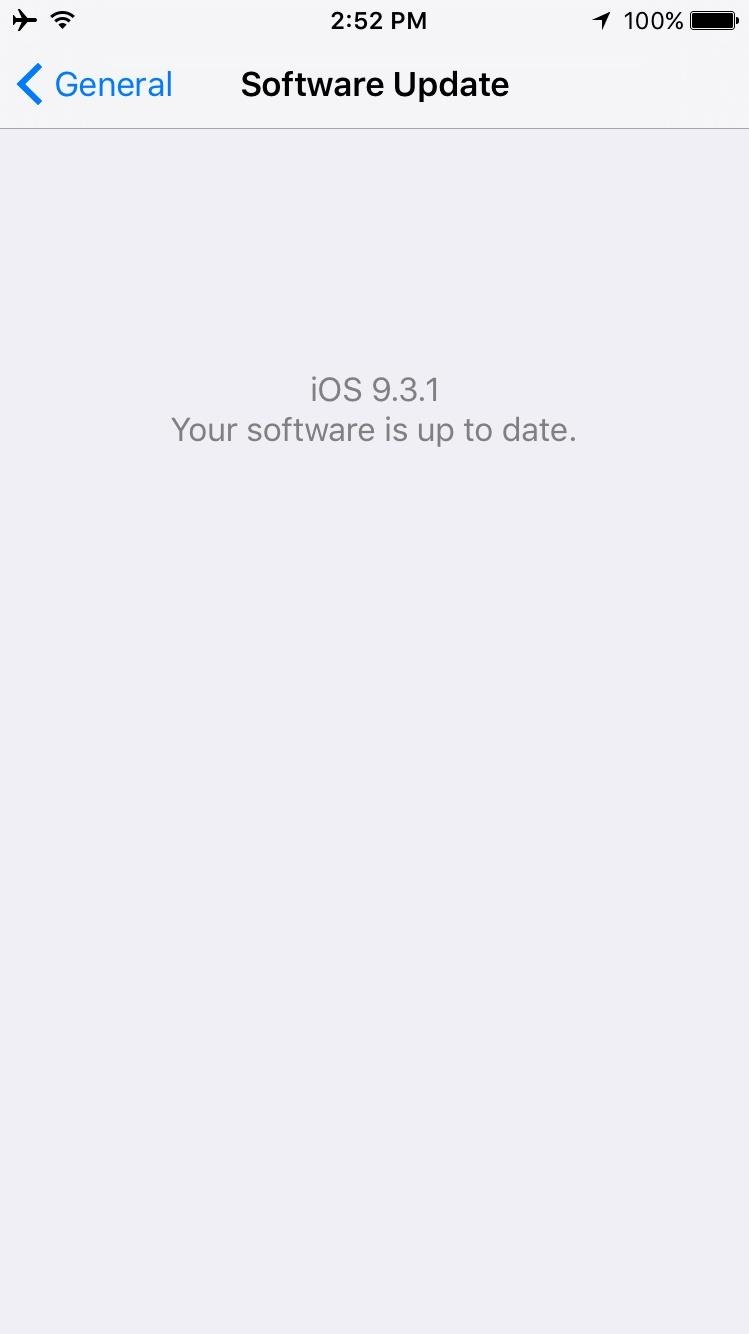
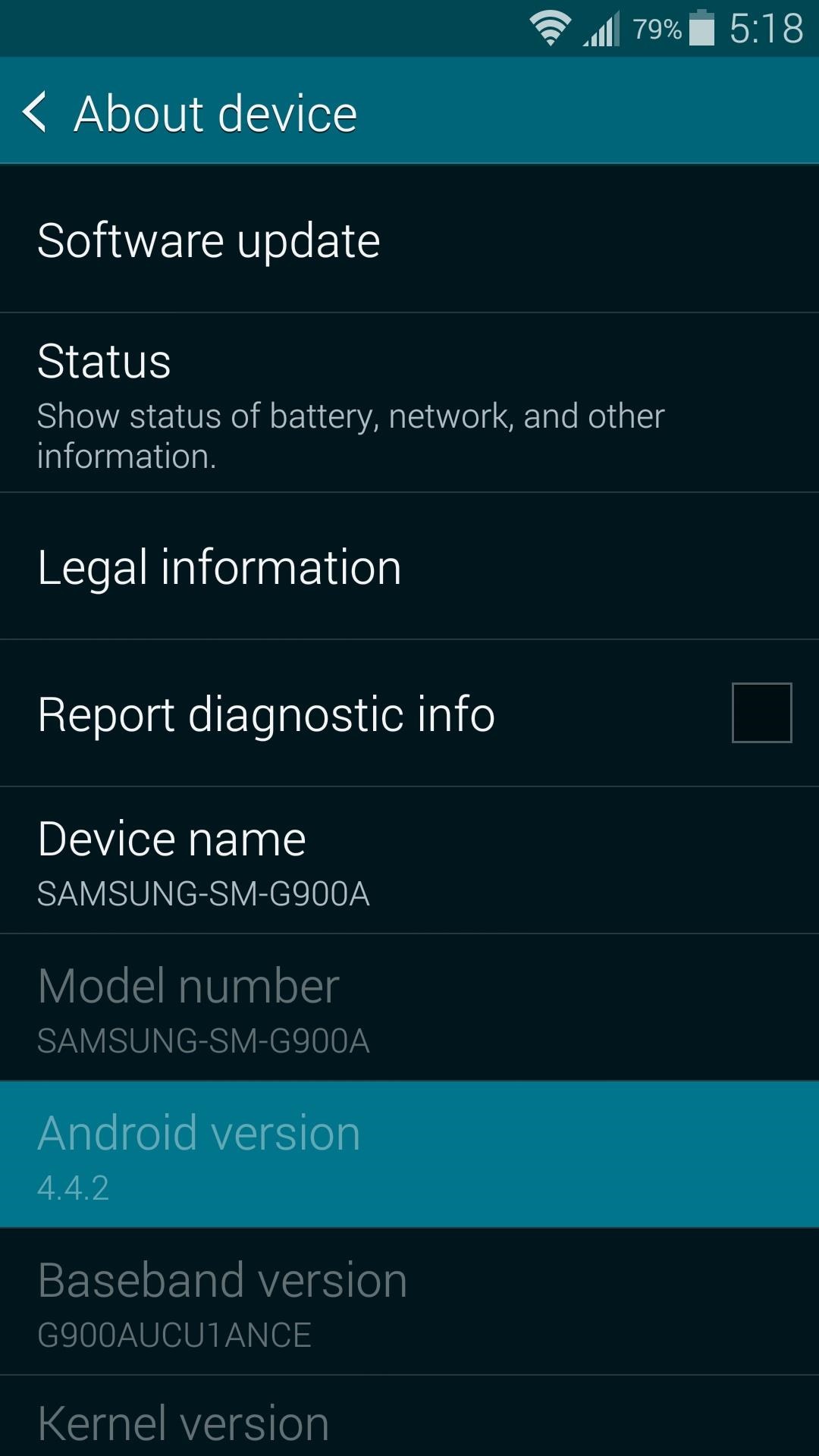
[1] 2-year-old iPhone running new firmware. [2] 2-year-old Samsung running 2-year-old firmware.

#6 - Reachability

In my other article, I gave Android credit for making the back button more accessible than iOS. But the better button placement doesn't help much when you're trying to tap a link, image, or icon within the app you're using—especially with today's bigger devices.
iOS solved this issue with a rather simple feature called Reachability. Just double-touch your home button, and the entire screen shrinks down to be closer to your thumb. Android, however, has no such feature, so you're stuck doing thumb gymnastics to reach the upper portions of your screen unless you're willing to get hacky.

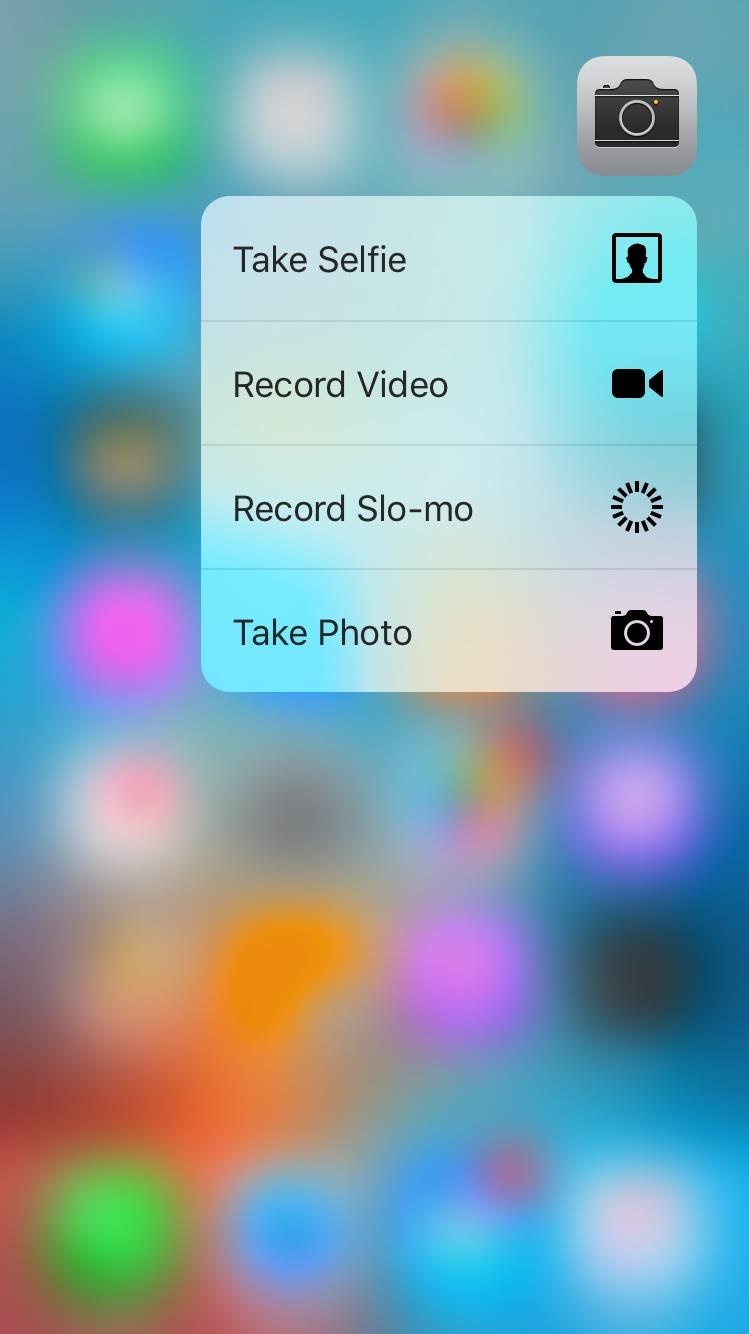
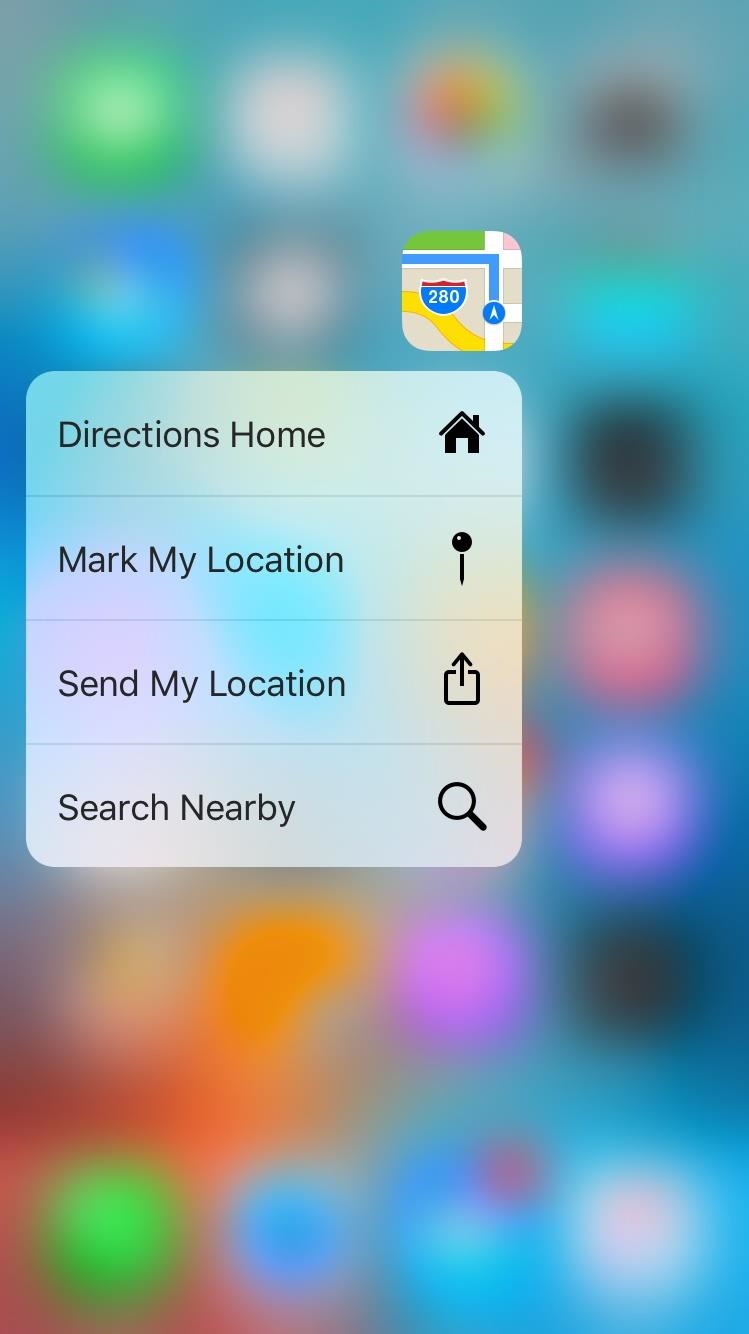
#7 - 3D Touch

Considering all of the functions our smartphones perform, we're disproportionately limited in the ways we can tangibly interact with our devices. This is why Apple's 3D Touch feature is so important—it gives us several new methods for physically connecting with our apps and games.
True, this is mostly a hardware feature, but it relies on iOS to provide all of its core functionality. Android, on the other hand, limits its users to taps and long-presses, and while a 3D Touch alternative may be in the works already, it's important to note that Apple was the one to push the envelope on this front.

#8 - iMessage

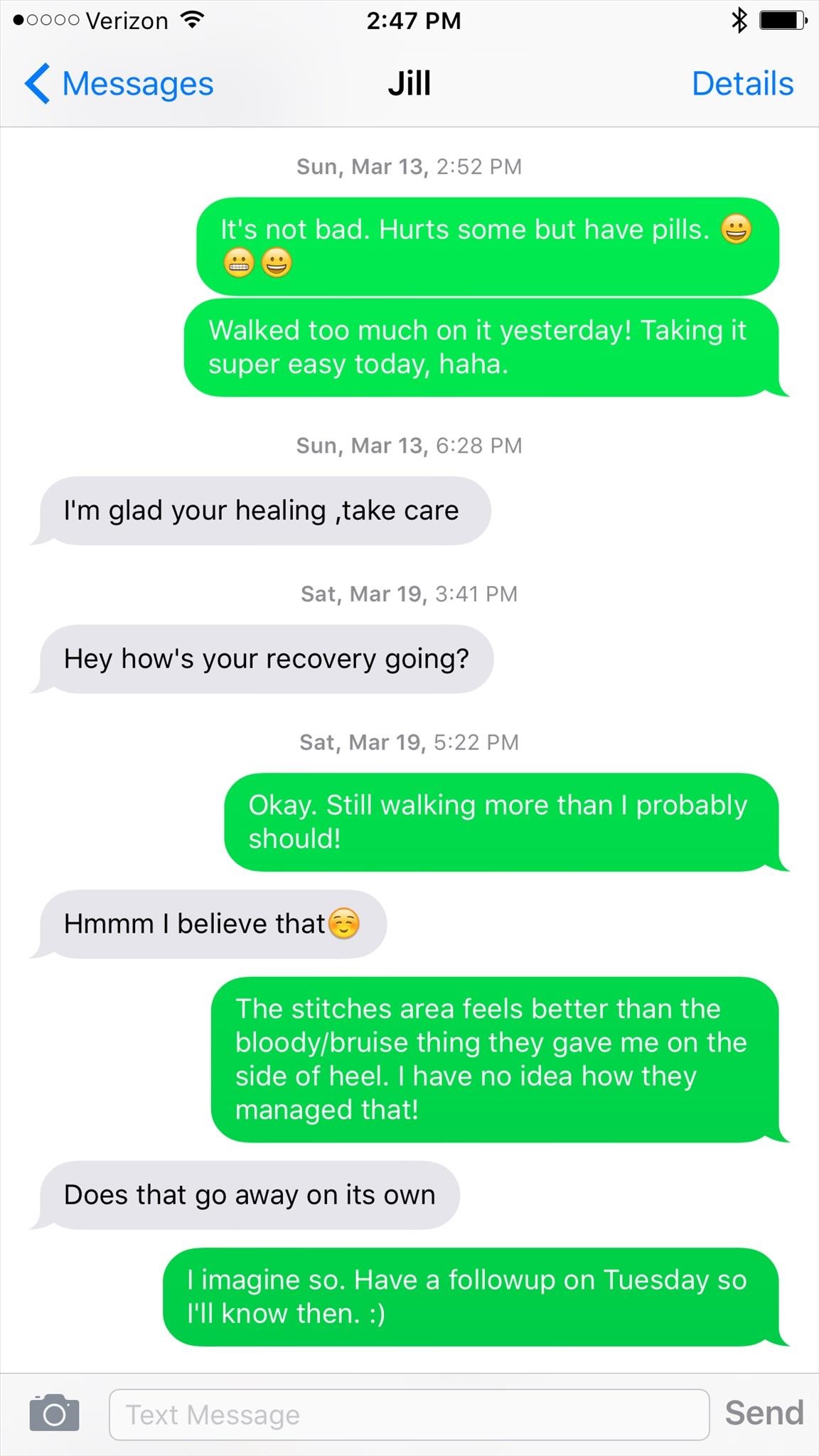
Apple's iMessage seamlessly integrates with your phone number, then turns boring old SMS messages into rich, high-tech communication. You can see when the other party read your message (unless they disabled it on their end), you can send bigger files, add group names, and you can even continue conversations from your Mac. In fact, it's such a nice experience that the term "green bubble" is almost derogatory, as it indicates that the other party doesn't have iMessage on their phone.
With Android, you have two options when it comes to text messages—either communicate with your friends using a technology that was created in the early 1980s, or get them to sign up for a more modern service like WhatsApp, Facebook Messenger, or Hangouts. Good luck with that.
[1] Regular text messages in green. [2] And iMessages in blue.

#9 - Ad Blocking

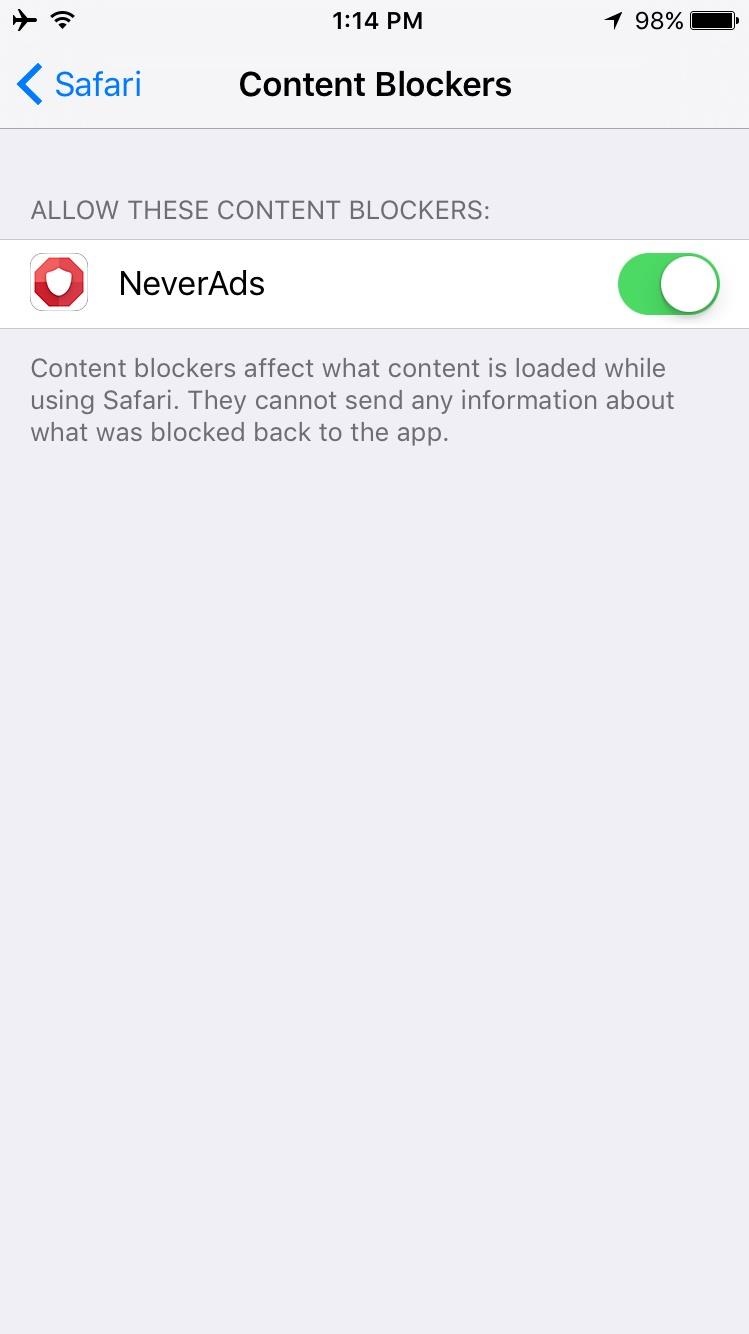
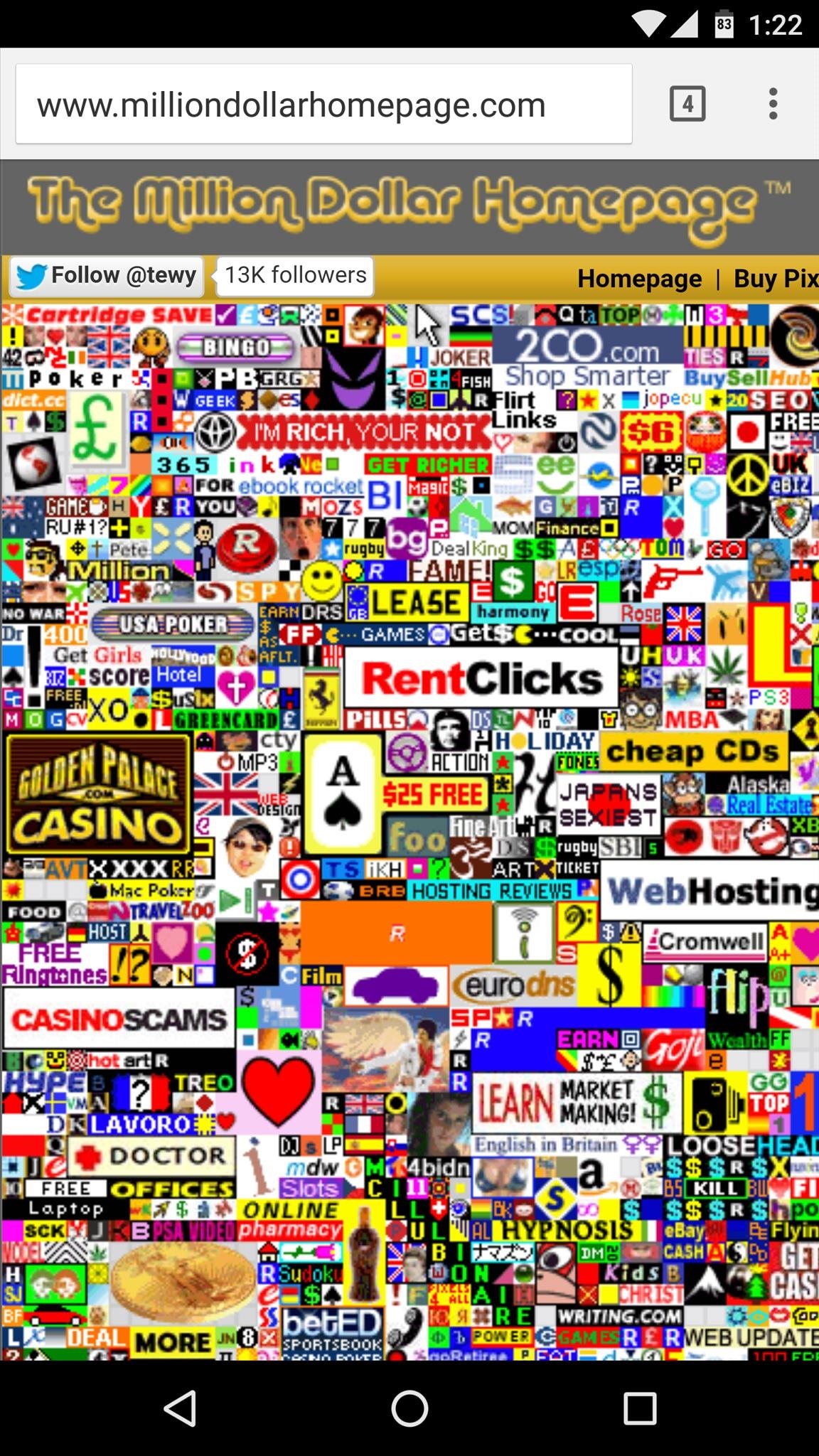
At the heart of their business model, Google is really an advertisement company, so there's no way in hell they're making it easy for users to block ads on their own operating system. Apple, on the other hand, recently introduced a new Content Blockers feature for Safari, which lets you install apps that will block all ads on the internet—or even just mentions of annoying celebs.
True, you can get system-wide ad blocking on Android, but these methods either require root, or setting up a complicated VPN service, so they're not viable for the majority of users. With iOS, on the other hand, I'd feel comfortable telling my grandma how to block ads on her phone.

#10 - Incentivize Developers

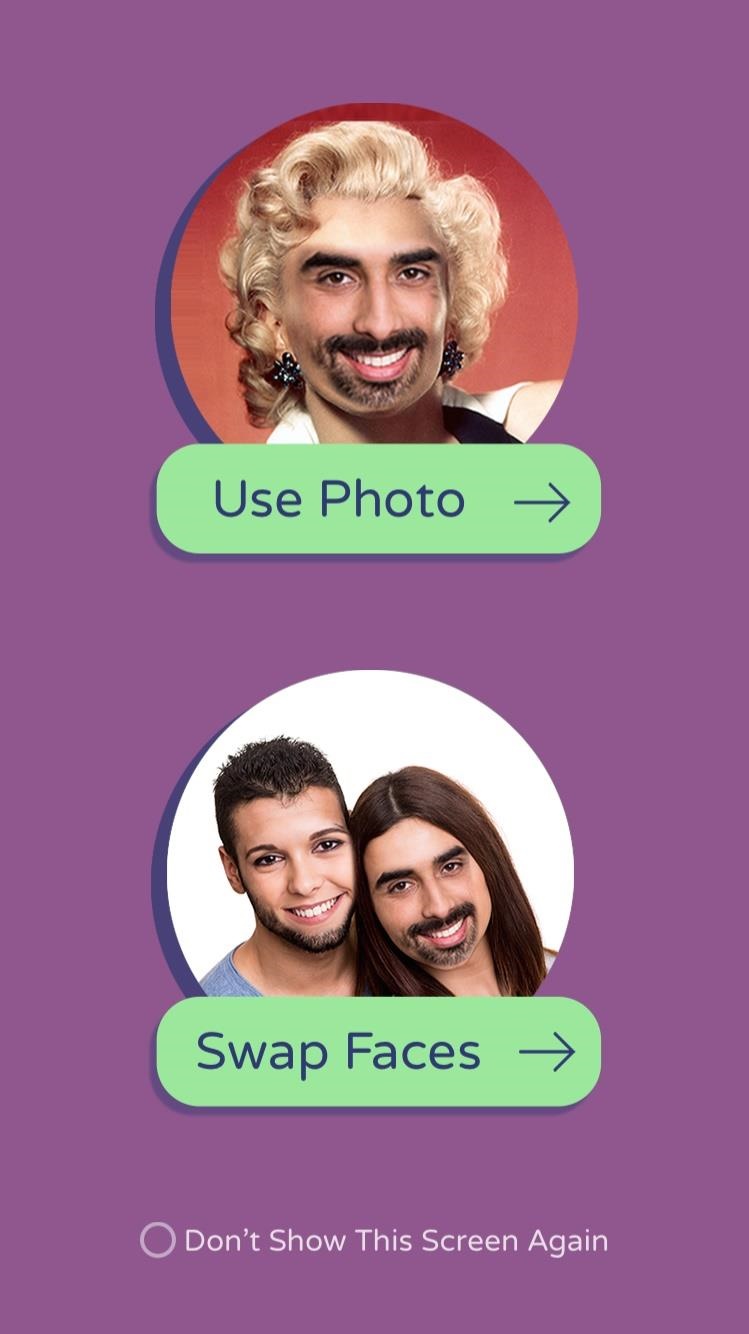
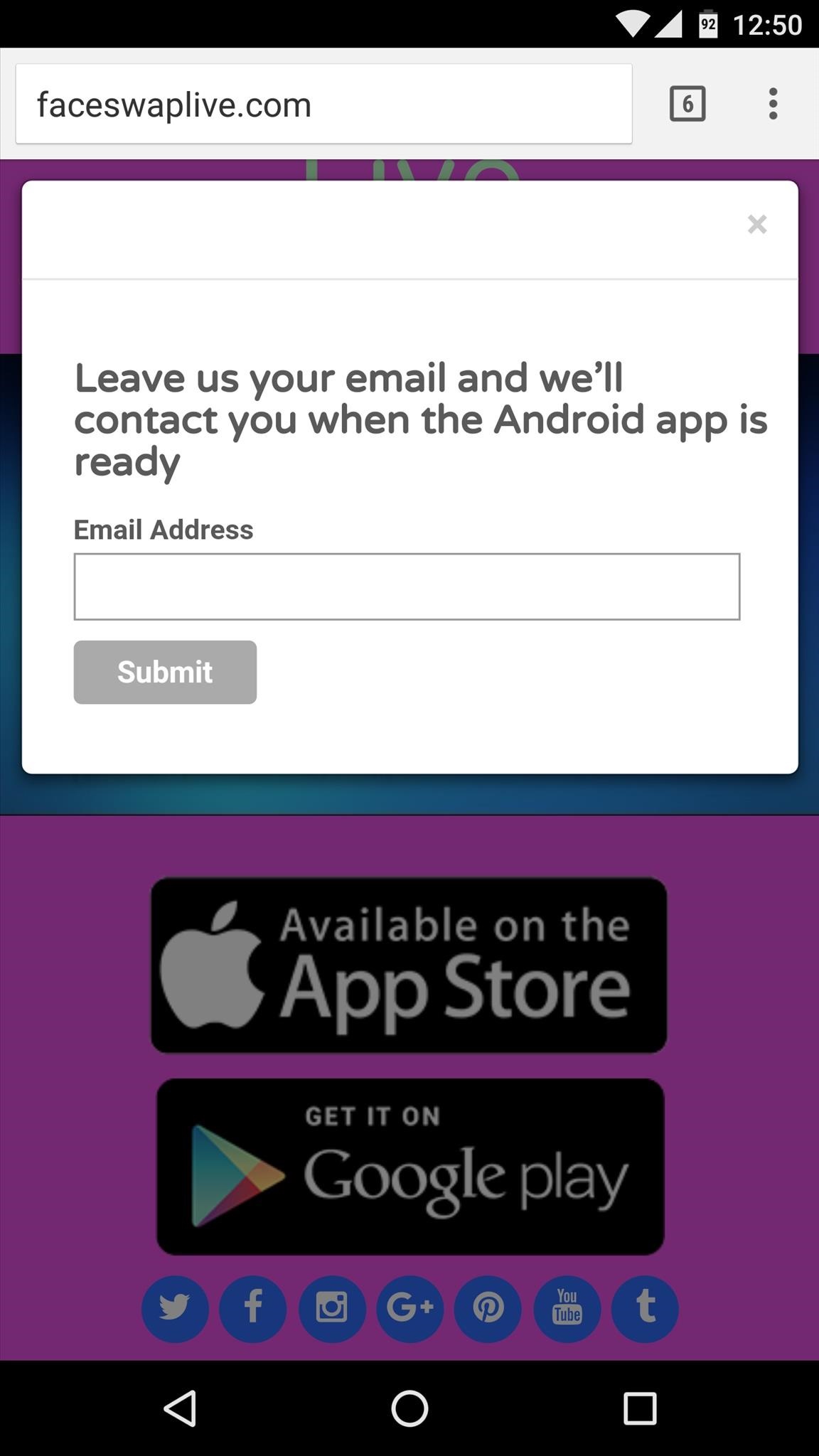
Developers are definitely quicker to publish apps on iOS than they are on Android. For instance, Face Swap Live has been around for a few months on iOS, but the Android version that has been "in the works" since day one is still not available. By the time an Android version finally comes out, the Face Swap fad will have run its course—and this is something we've seen countless times with Android.
There are several different reasons for this, and none are likely to change. First, studies show that iOS users spend more money on apps than Android users, so there's financial incentive. Second, Android phones and tablets come with thousands of unique display sizes, resulting in lots of extra work to make sure apps are compatible with every device. Finally, iOS's coding language is more modern and flexible than the one used in Android, since Google has been tied up in a longstanding lawsuit over the use of Java, restricting any growth on this front for years now.
Ultimately, I'm a lot more impressed with iOS than I was when I started researching for this article. There are several things it does that I wish Android could do, and even a few others that I know Android will never be able to do. That said, I still prefer the freedom that Android offers, so I doubt I'll be switching over to iOS any time soon, but now I feel like the gap is a lot closer than I initially thought.